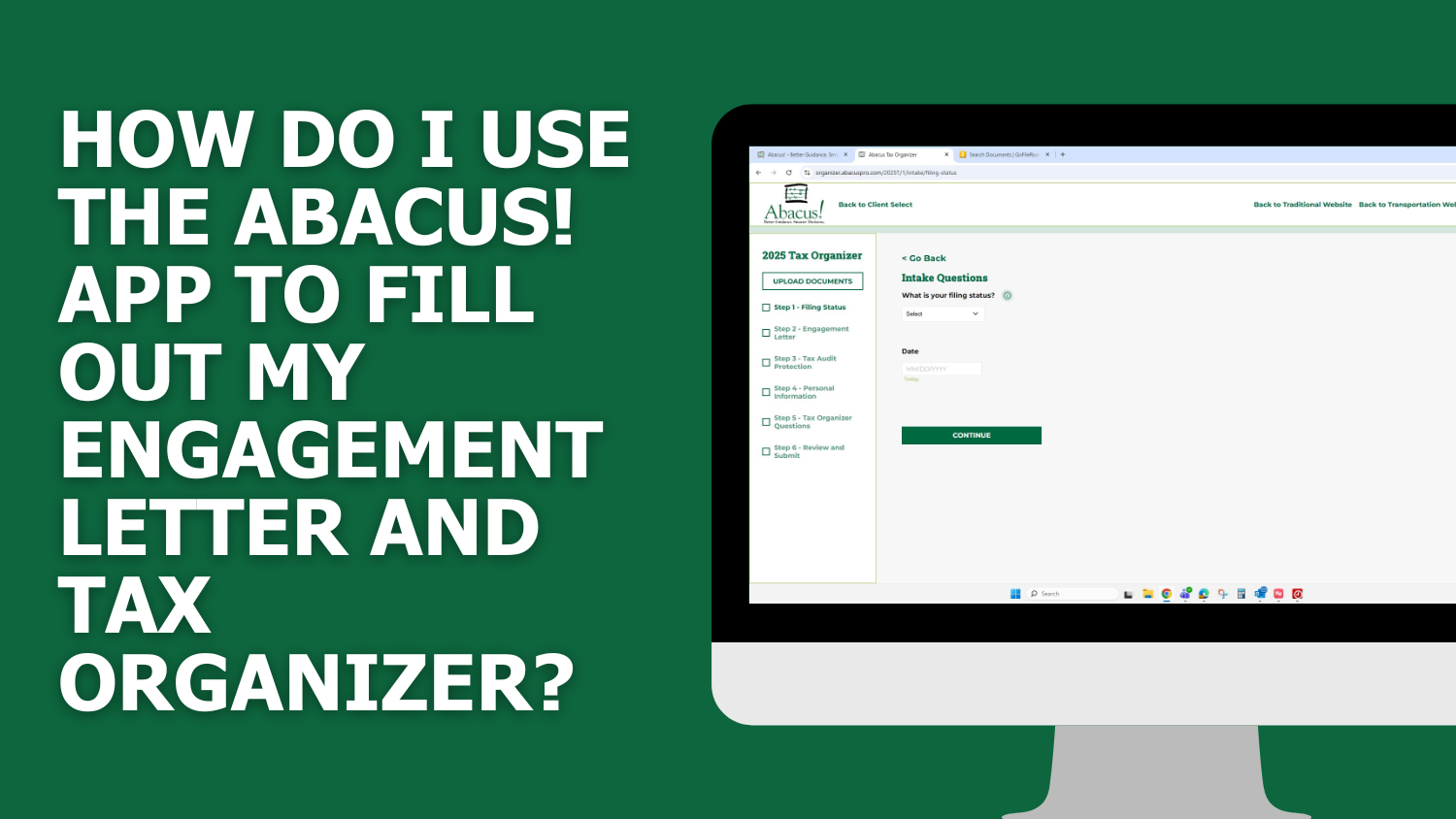
Follow this step-by-step guide to fill out your Engagement Letter and Tax Organizer using the Abacus! App (web version). View our mobile step-by-step guide here to learn how to use the app on your mobile device.
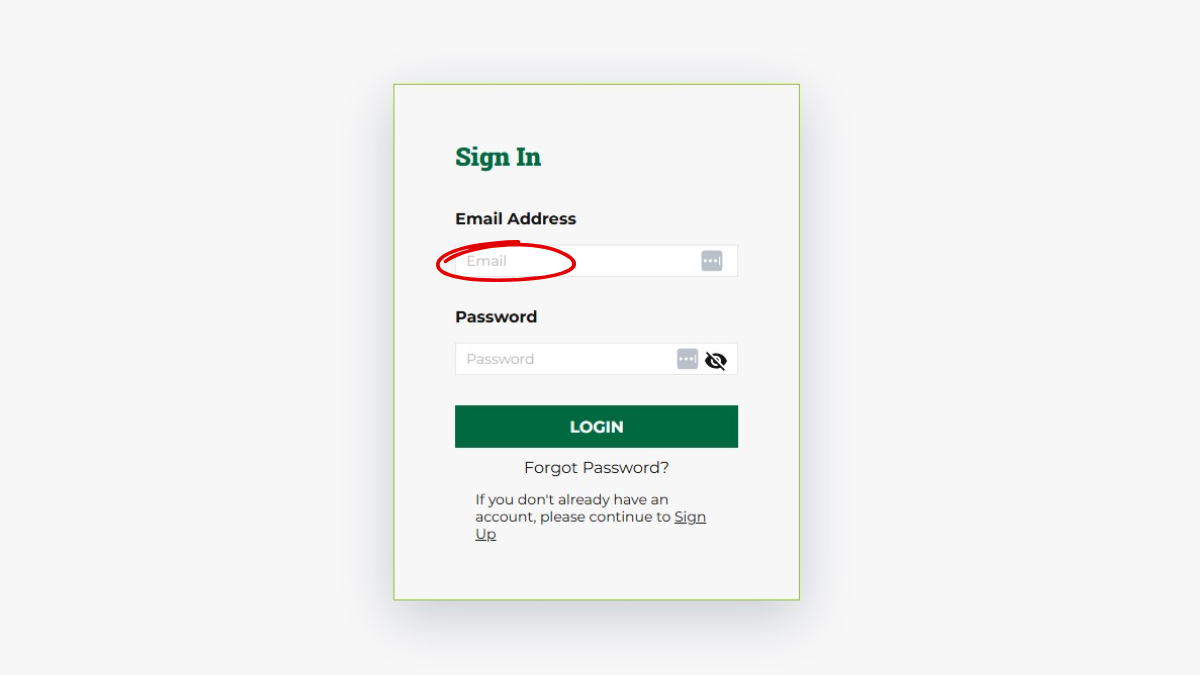
Step 1
- Sign in with your existing Abacus! App account, or sign up using your registered Abacus! email address. Need help? View the How to Sign Up guide here.
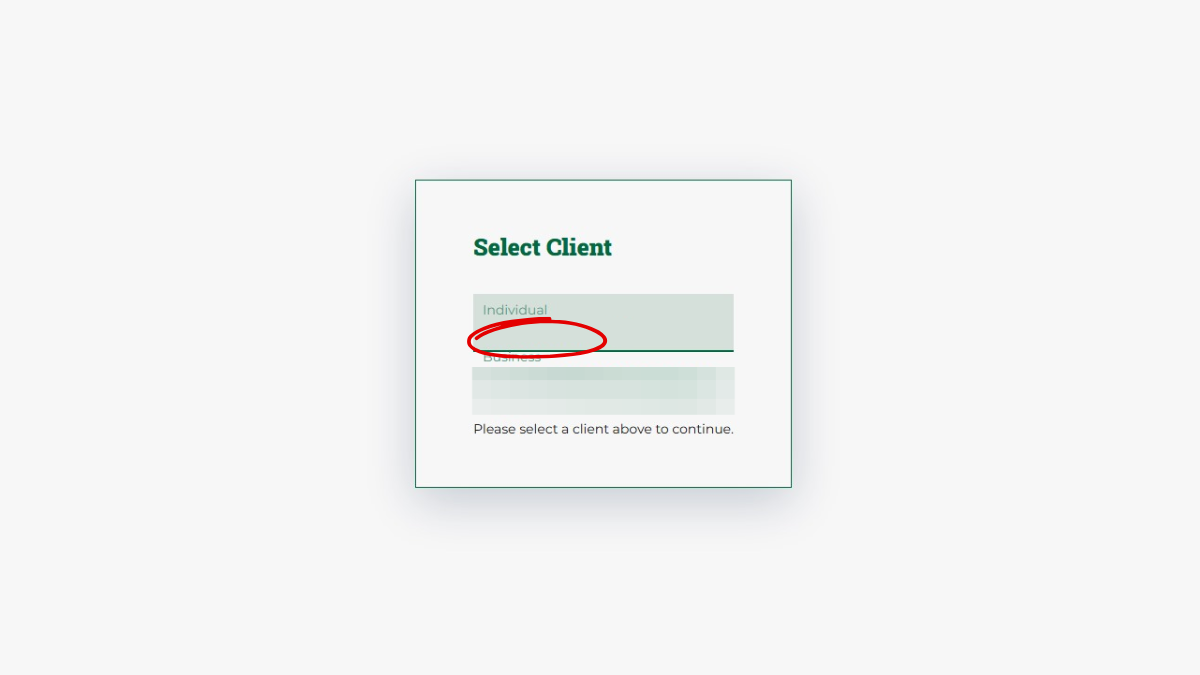
Step 2
- Choose the individual or business name associated with the forms you need to complete.
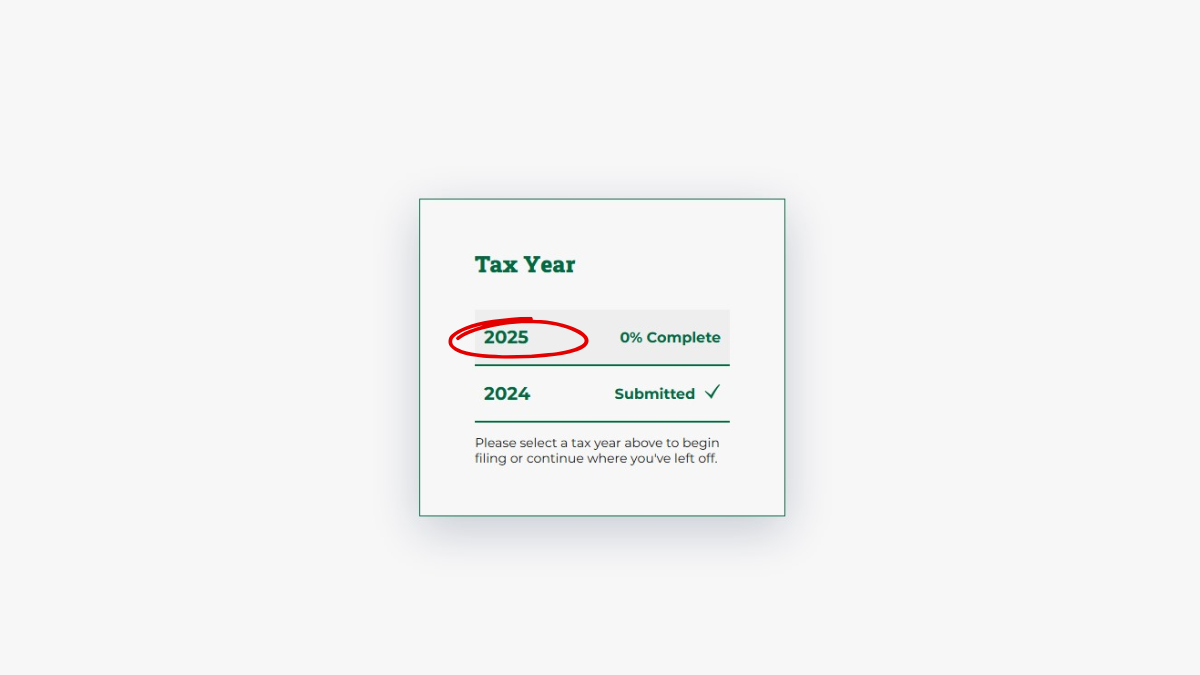
Step 3
- Select which tax year you would like to complete.
Step 4
- Complete the intake questions.
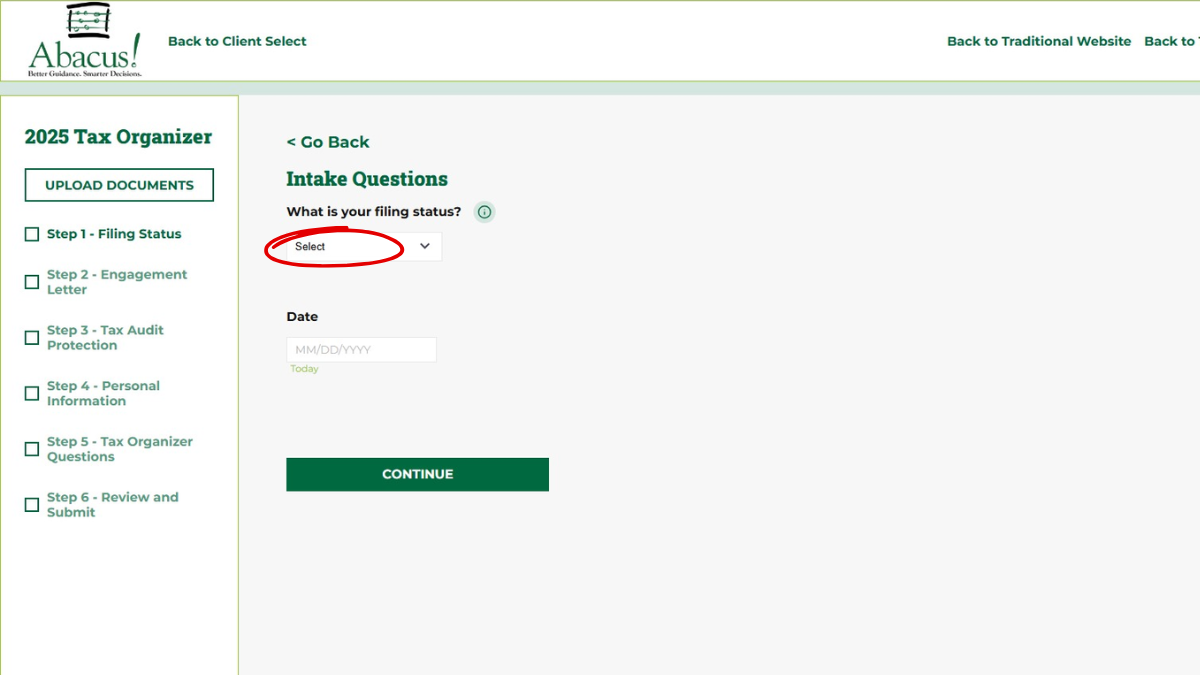
Step 5
- Select your filing status from the dropdown menu.
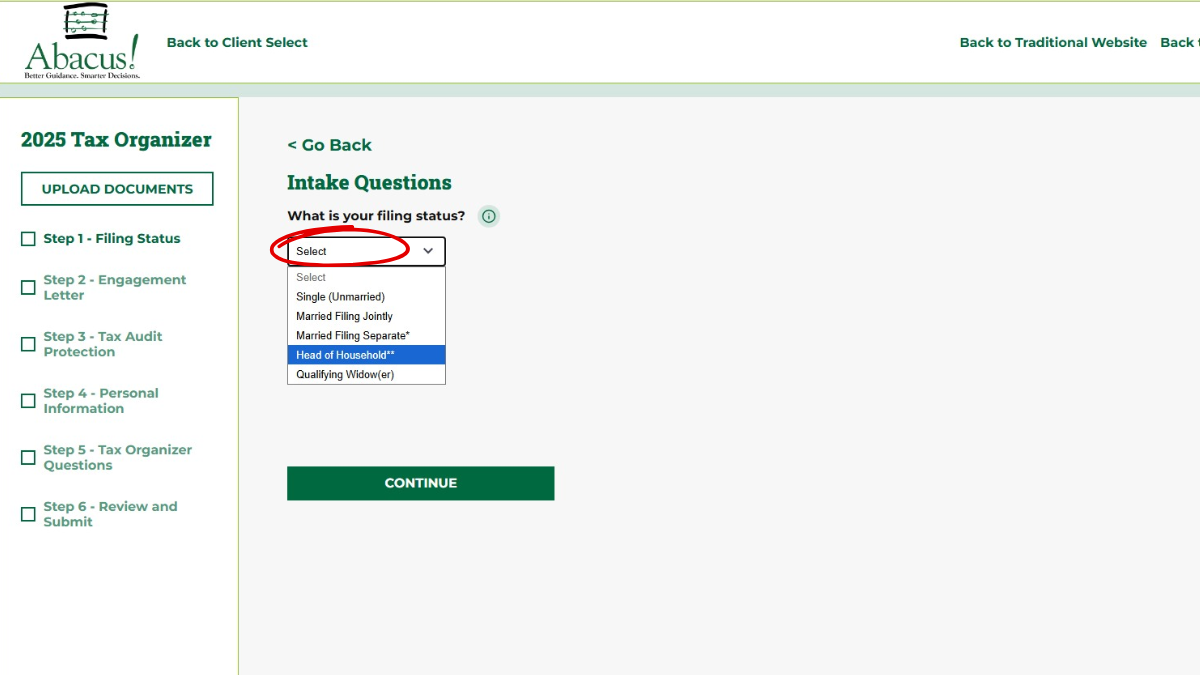
Step 6
- Once you’ve selected your filing status, click “Today” to auto-fill today’s date.
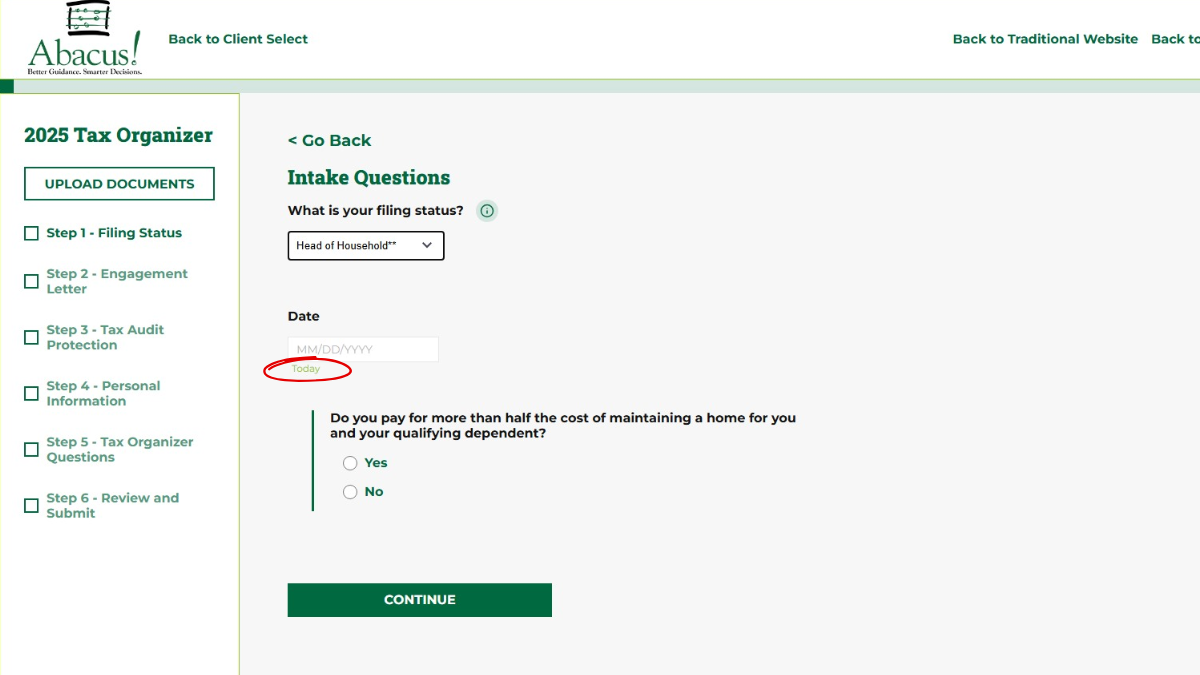
Step 7
- Click “Yes” or “No” to answer the question.
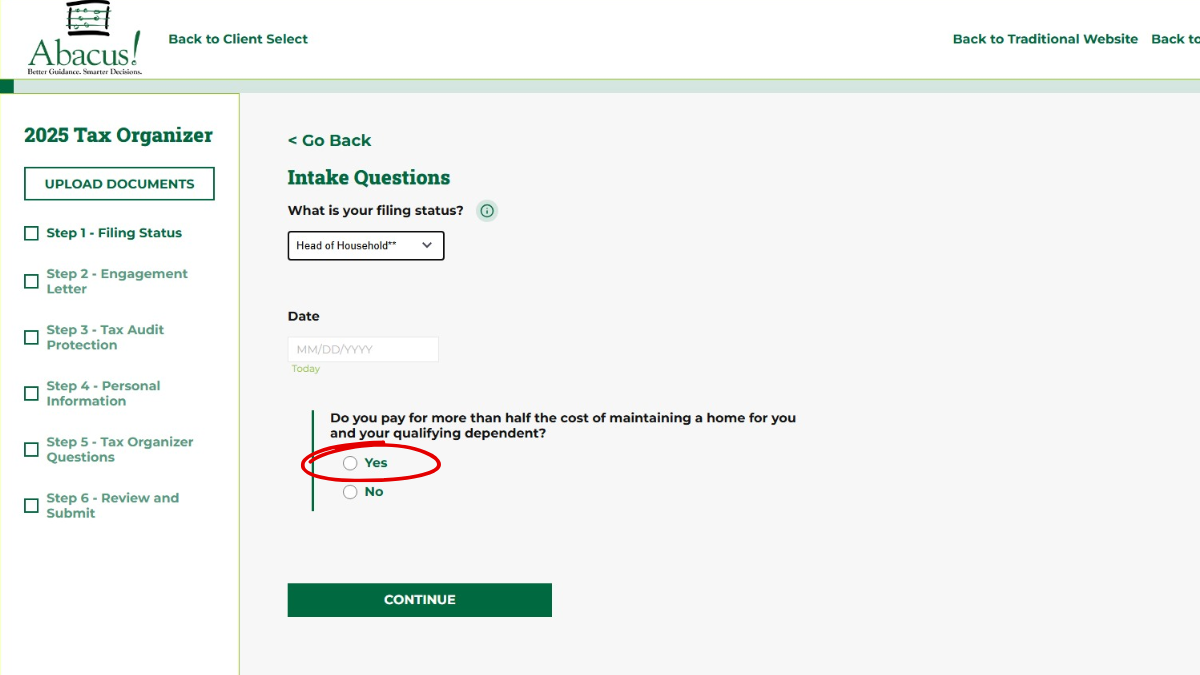
Step 8
- Once you’ve completed all fields, click “Continue.”
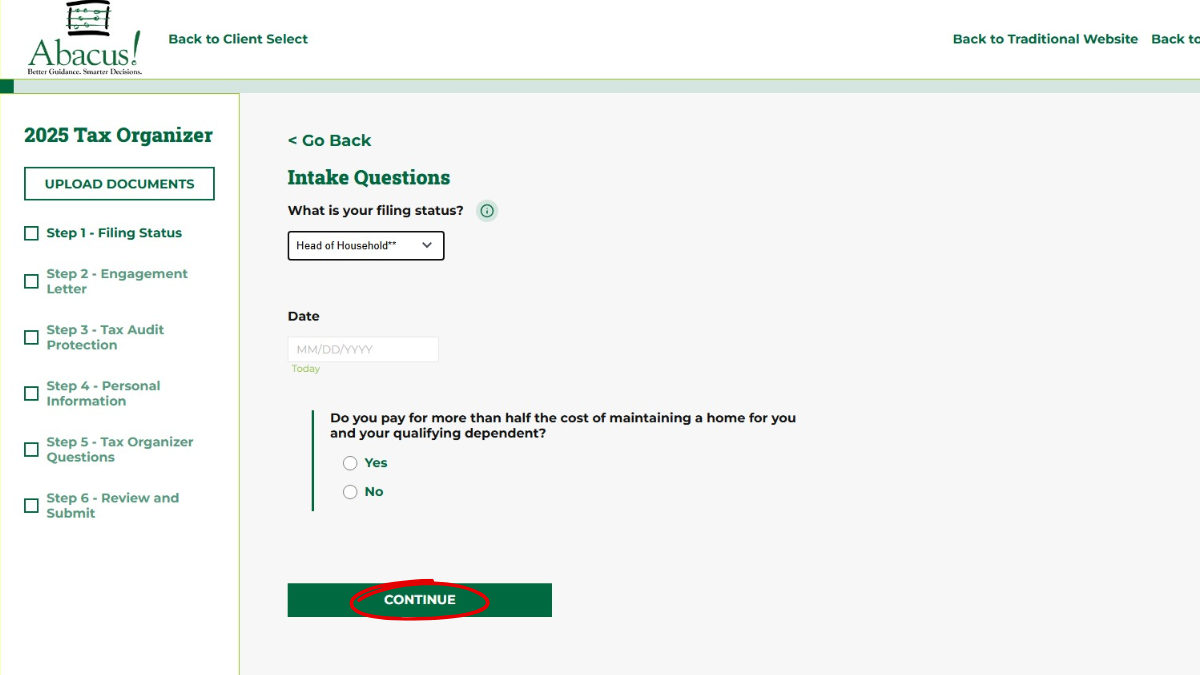
Step 9
- Carefully read through the Engagement Letter, then sign in the “Taxpayer Signature” field.
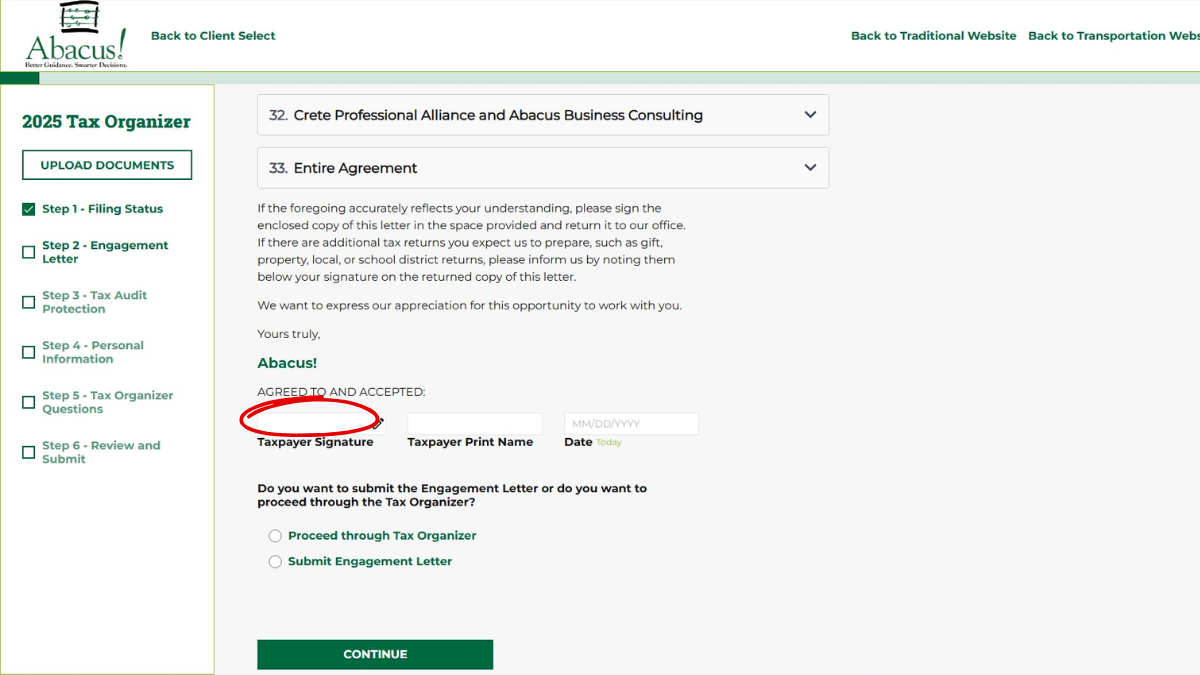
Step 10
- After signing, click the “Taxpayer Print Name” field and type your name.
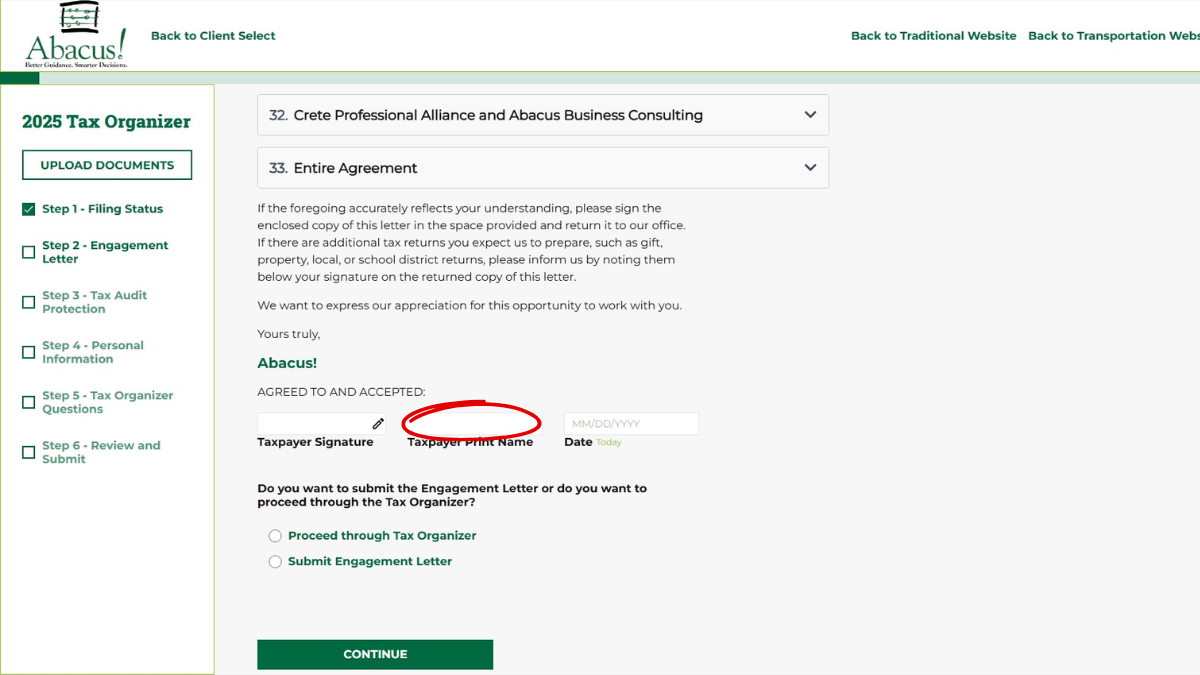
Step 11
- Once you’ve signed and typed your name, click “Today” to auto-fill today’s date.
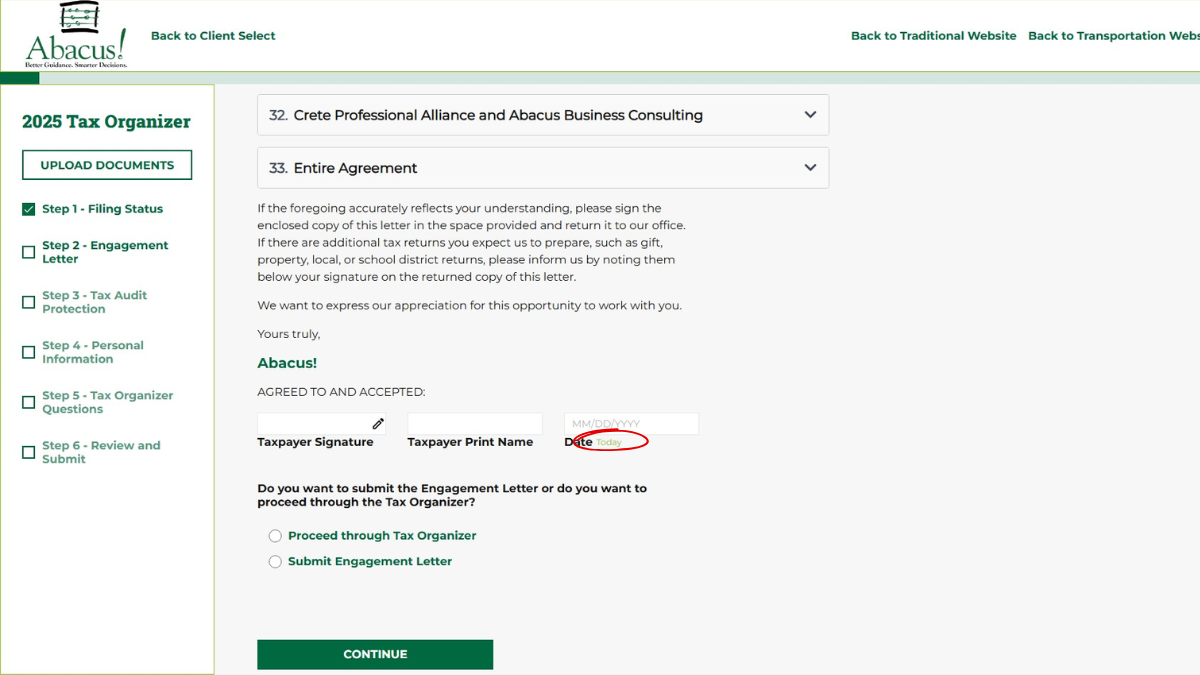
Step 12
- Select “Submit Engagement Letter” or “Proceed to Tax Organizer.”
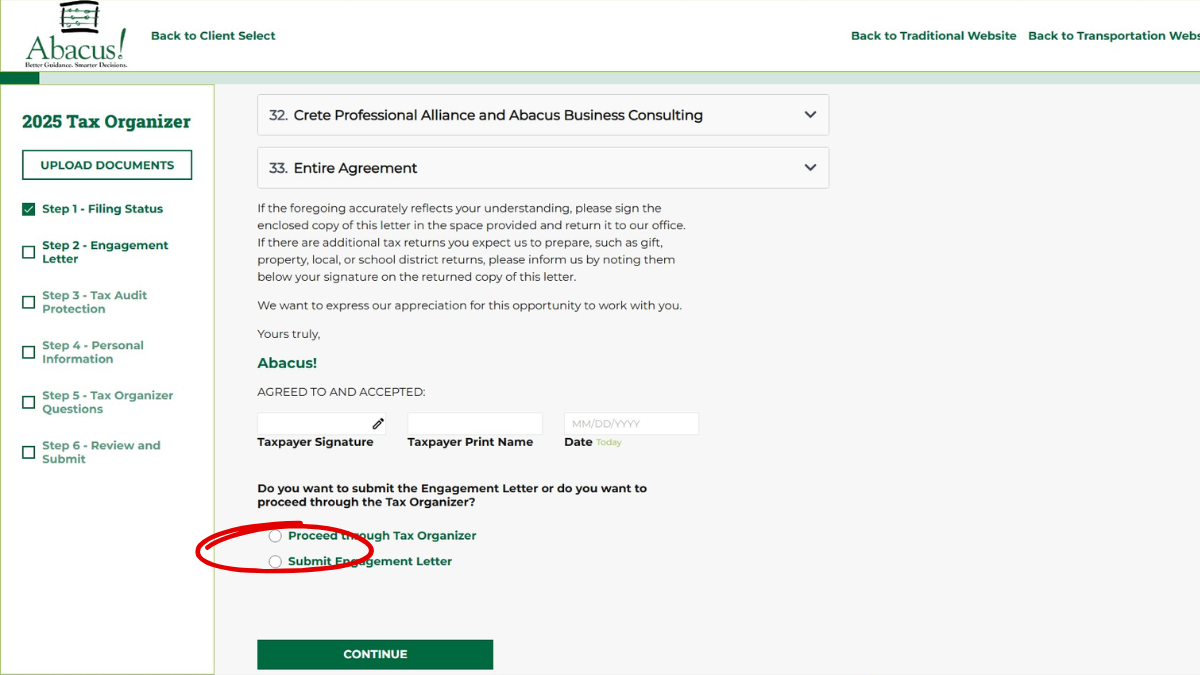
Step 13
- Steps 13 through 18 show what happens next if you select “Submit Engagement Letter.” After selecting “Submit Engagement Letter,” click “Continue.”
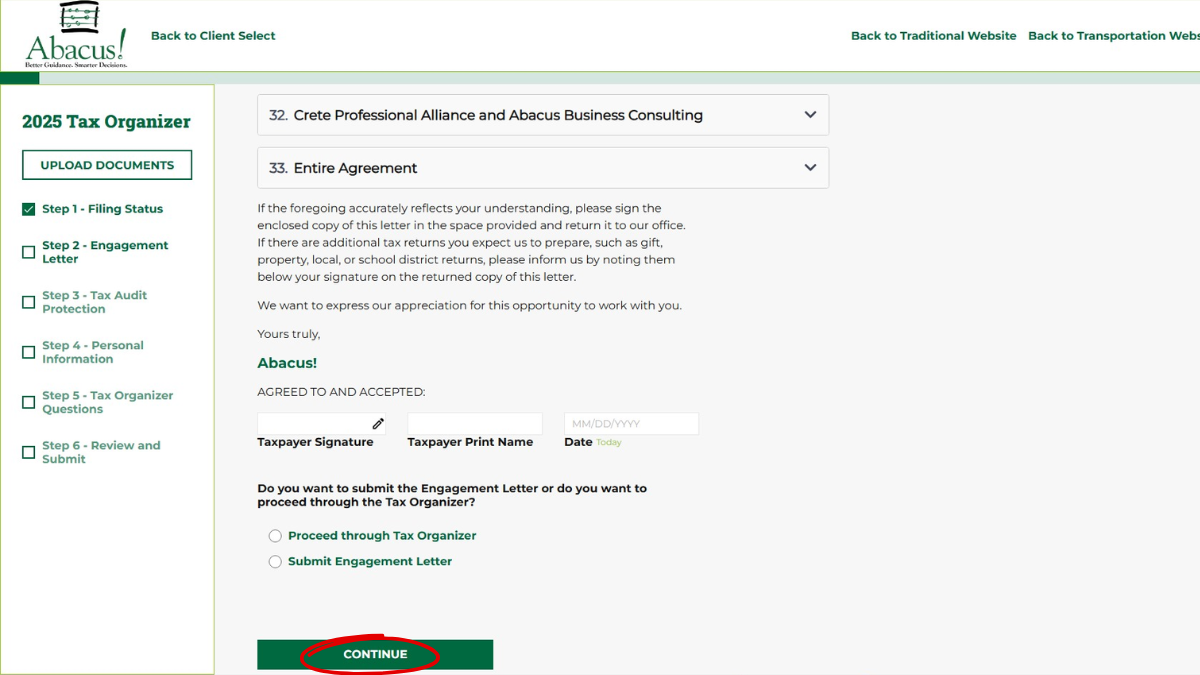
Step 14
- Review the Engagement Letter if needed, or scroll to the bottom to confirm your signature is correct. After that, click “Submit.”
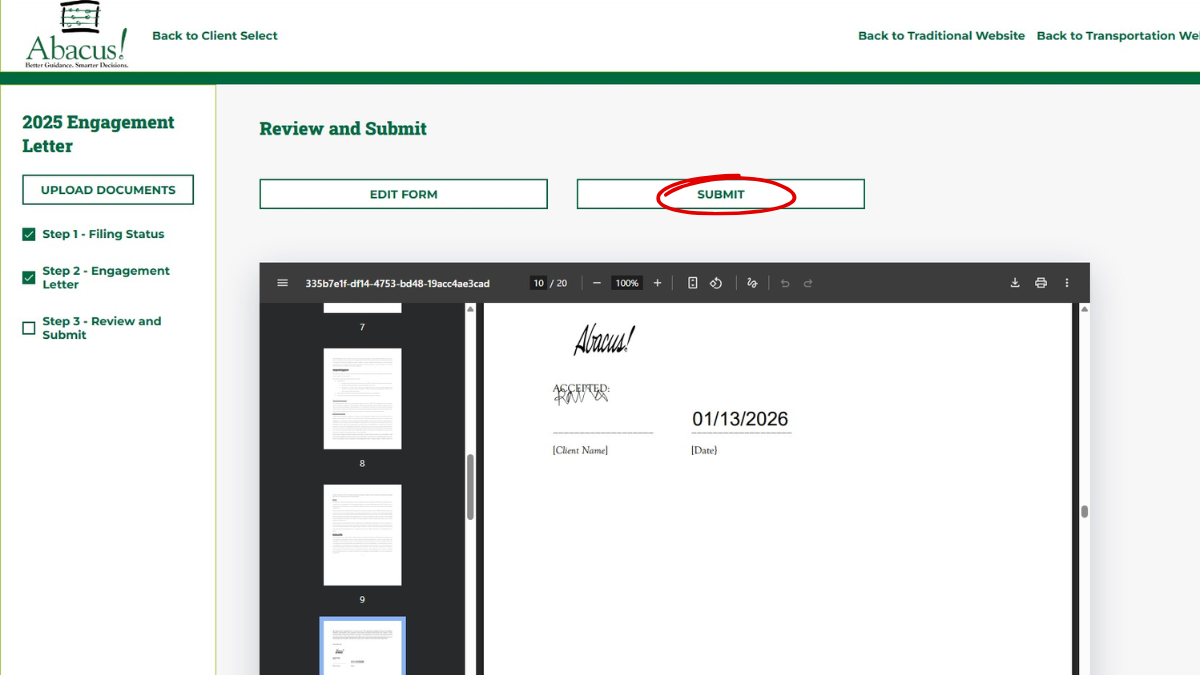
Step 15
- You and Abacus! will both receive emails confirming your submission through the app. After checking this, click “Continue.”
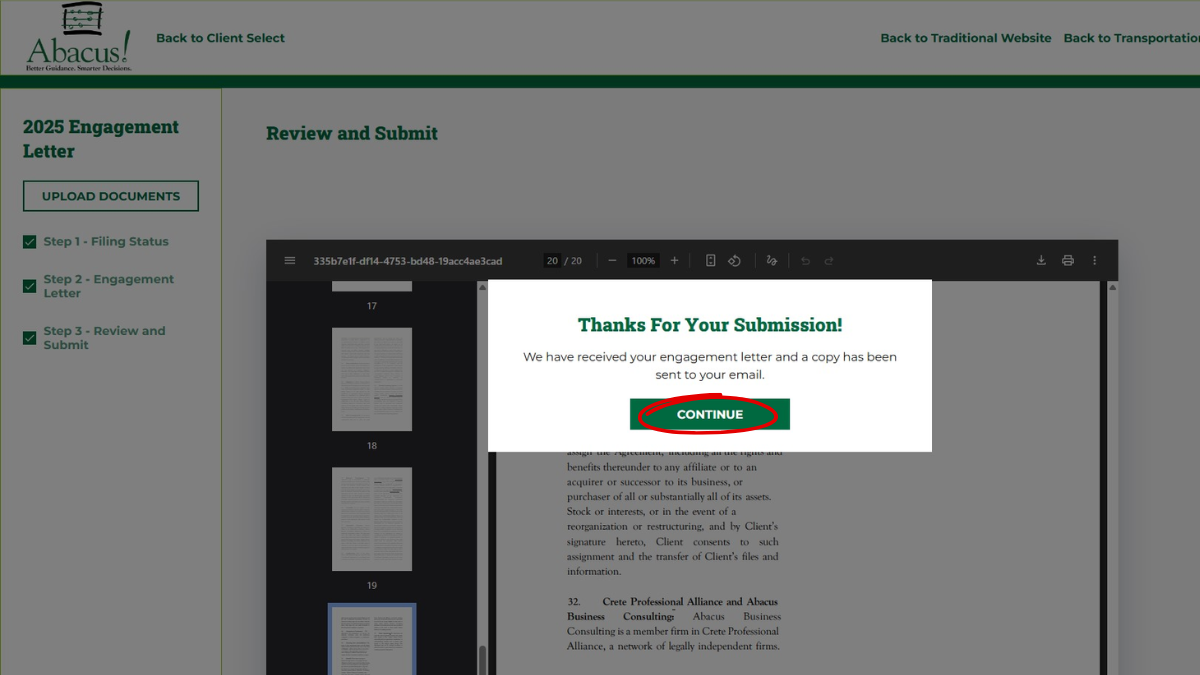
Step 16
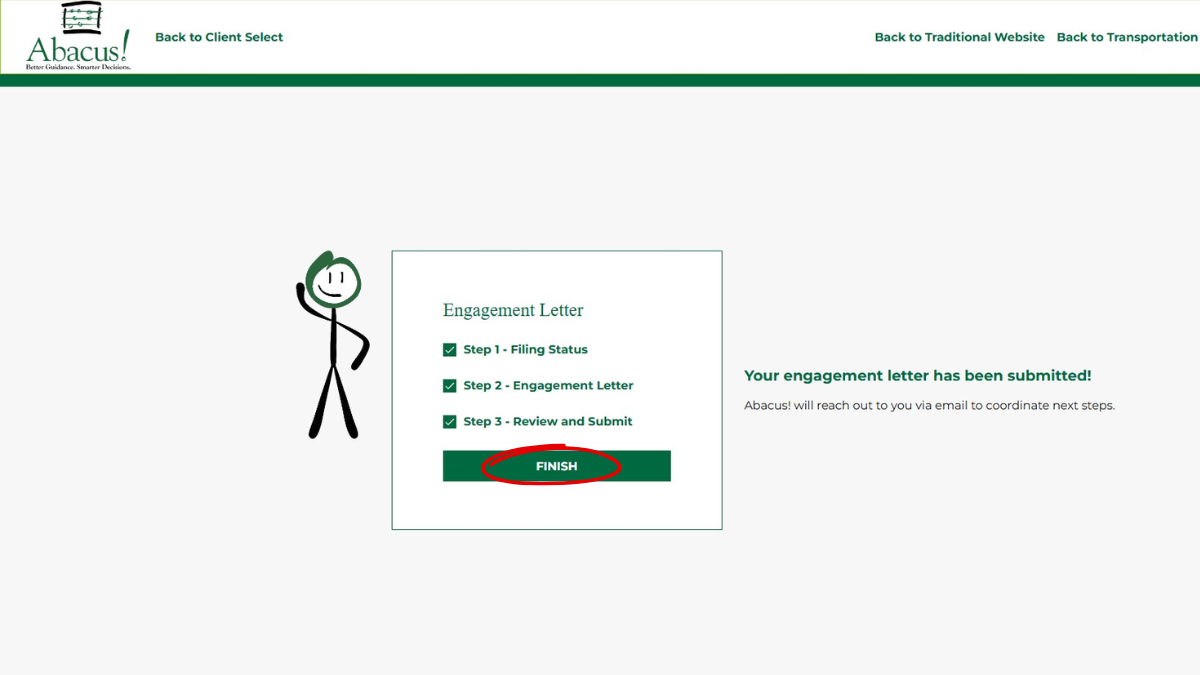
- Select “Finish.“
Step 17
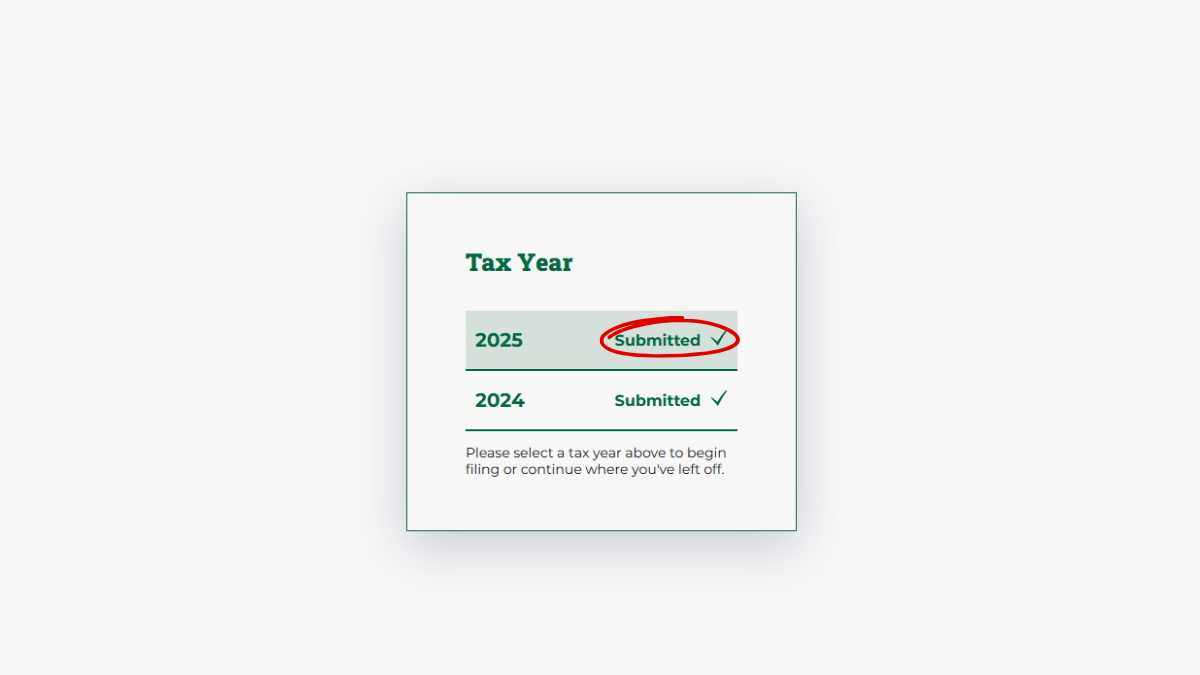
- When your Engagement Letter has been properly submitted, the selected tax year will now display “Submitted” on this screen.
Step 18
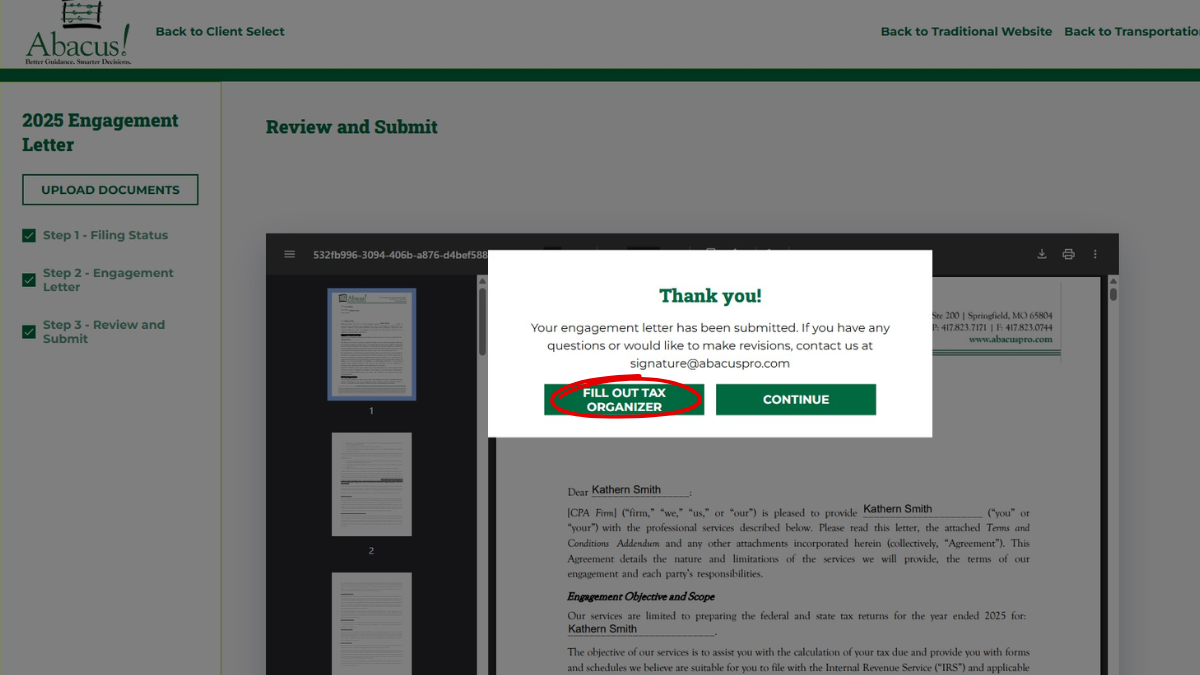
- Next, the app will prompt you to complete the Tax Organizer. You can either select “Fill Out Tax Organizer” or “Continue” to return to the main navigation screen. The following steps will show what happens if you select “Fill Out Tax Organizer.”
Step 19
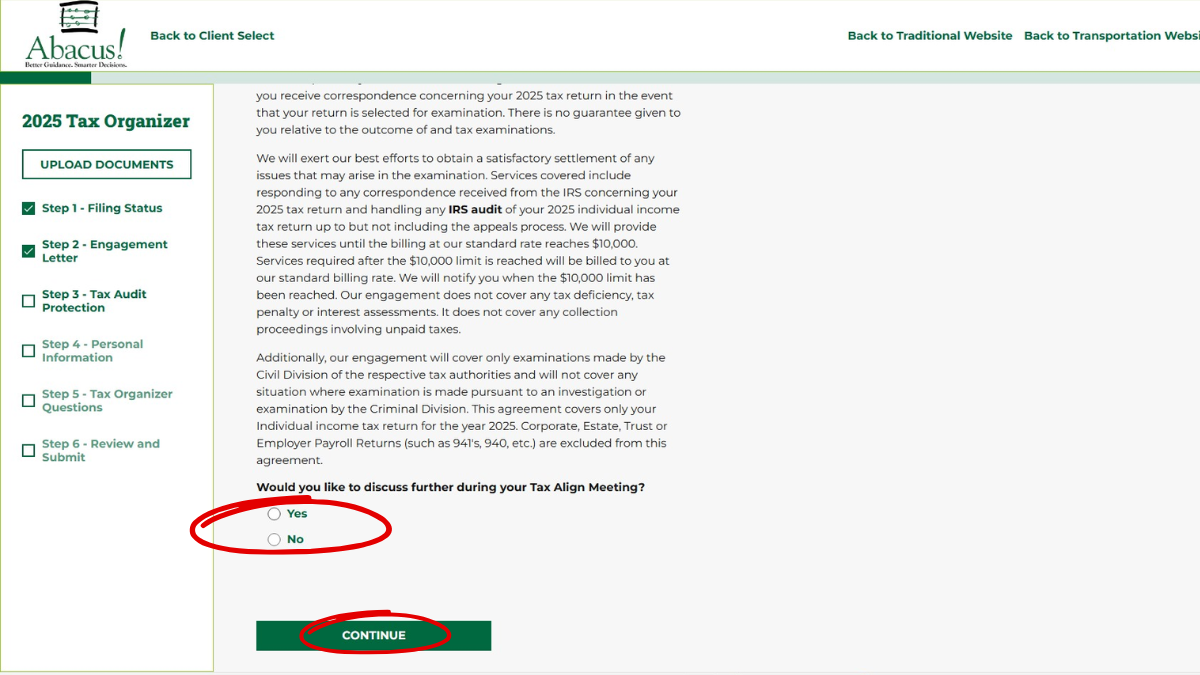
- Review the Tax Audit Protection offering and determine whether you want to discuss it during your ALIGN meeting with your Abacus! Professional. Once you’ve made your choice, click “Yes” or “No” and then select “Continue.”
Step 20
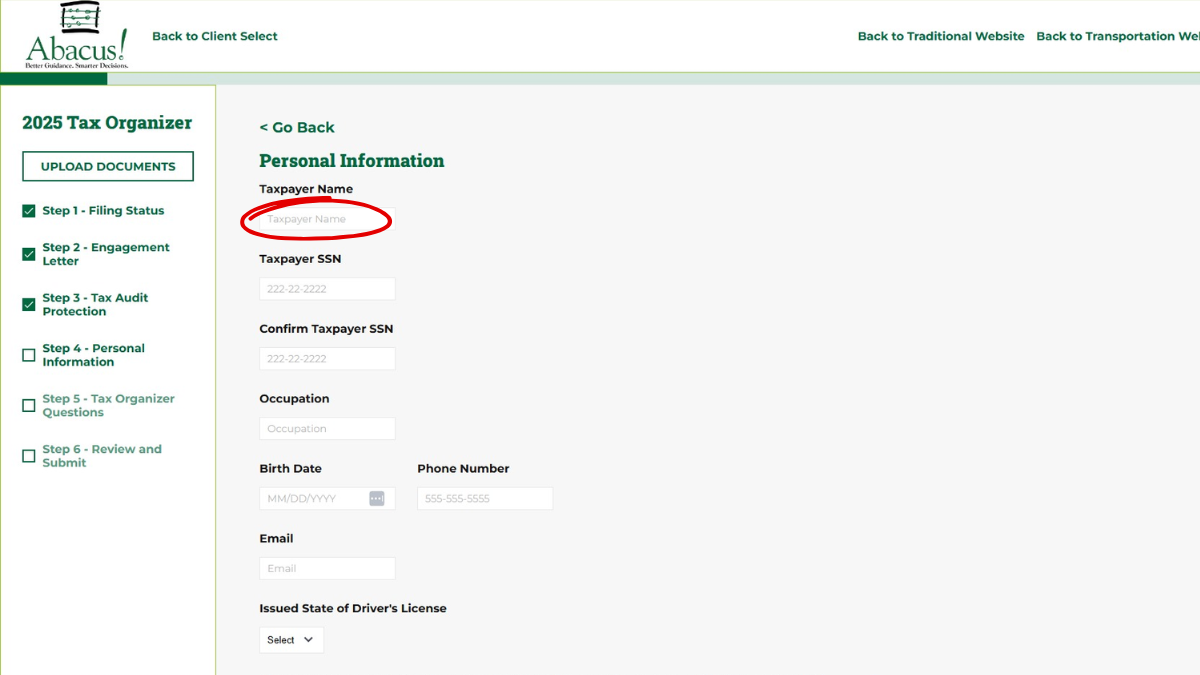
- You will now be prompted to answer personal information questions. To complete each one, click in the field and type your answer.
Step 21
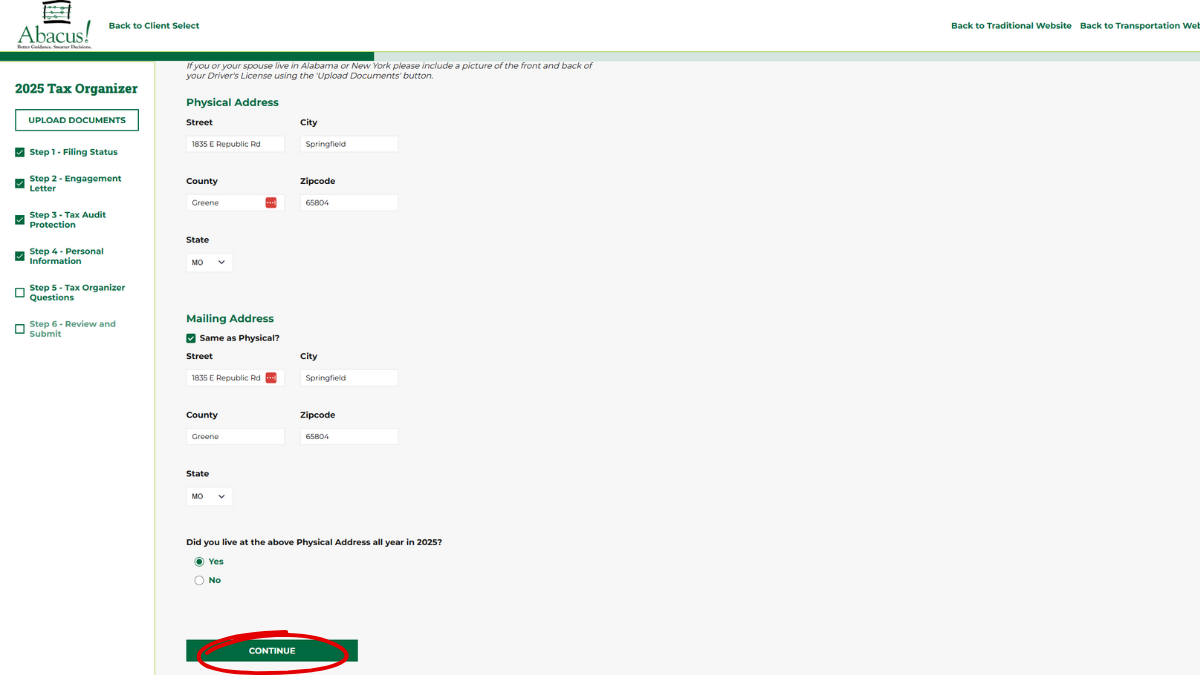
- Fill out each field with your information and select “Continue.”
Step 22
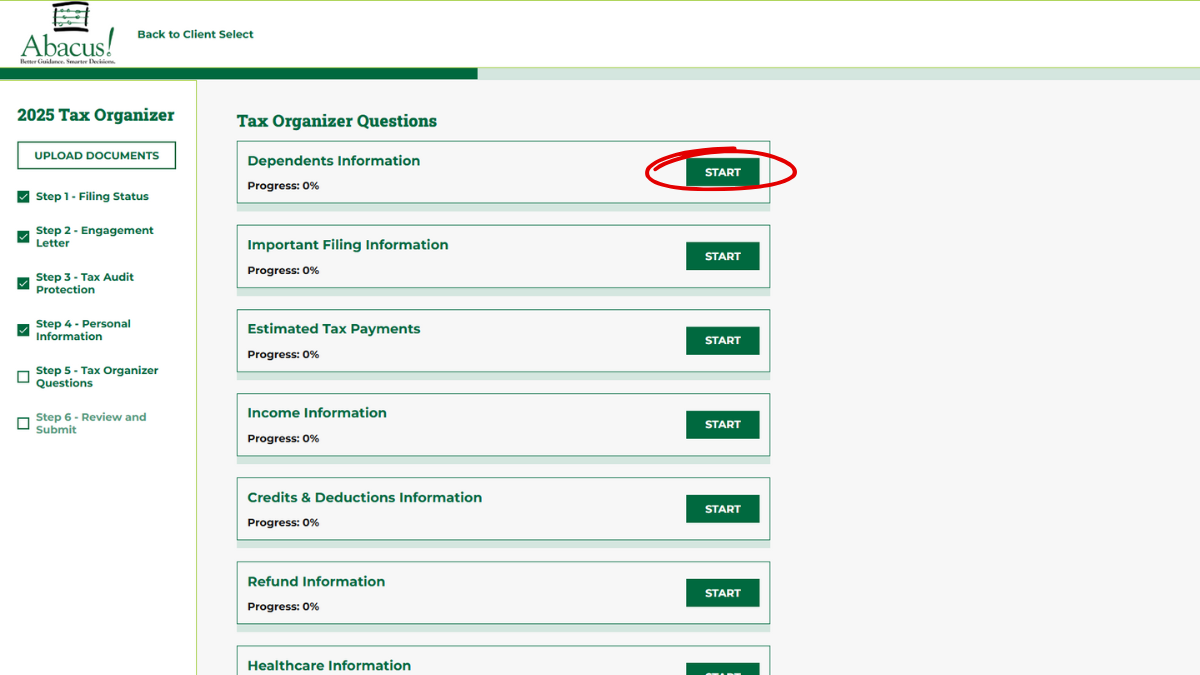
- You will now be prompted to answer the Tax Organizer questions. Click “Select” to begin each section.
Step 23
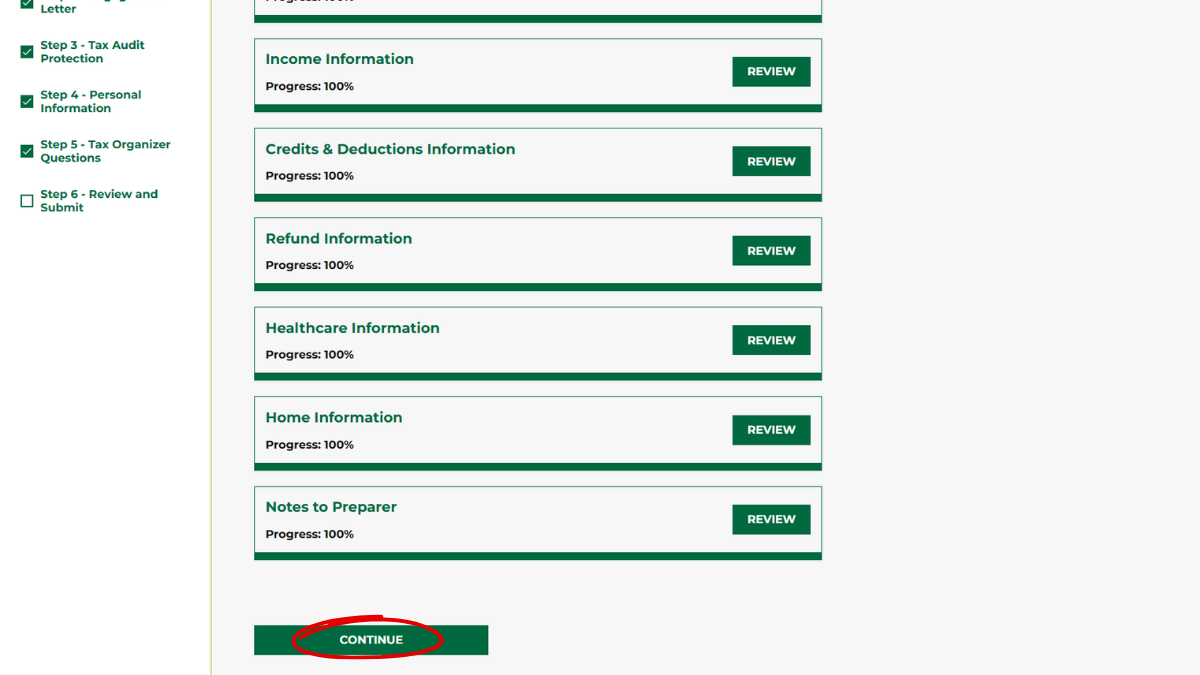
- Once you complete each section, the “Select” button will change to “Review.” After all buttons display “Review” and you’ve completed every section, click “Continue.”
Step 24
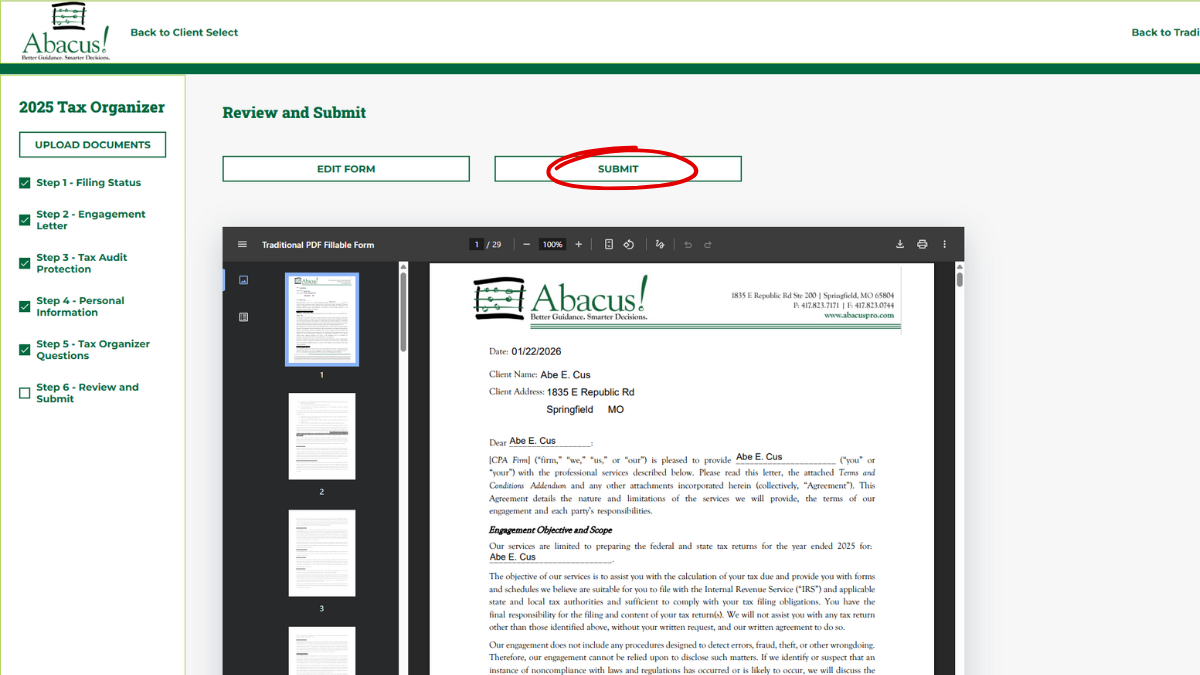
- Your answers will be compiled into a PDF file. Please review the file carefully to ensure all answers are correct, then click “Submit.”
Step 25
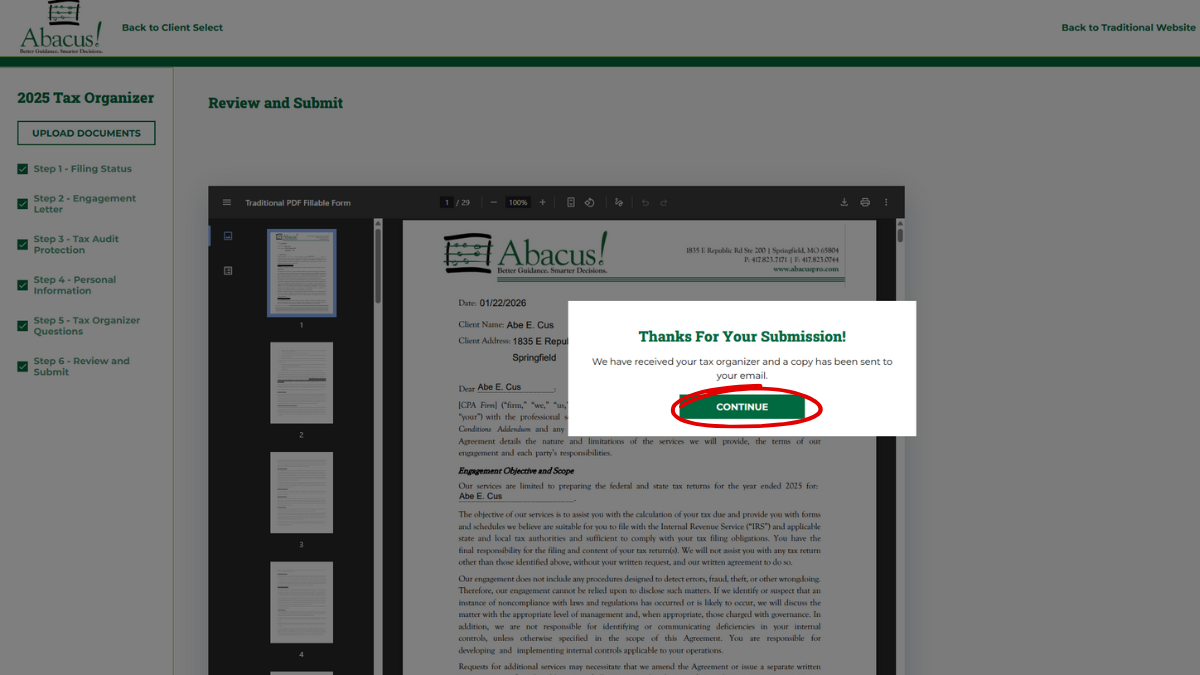
- You should see the message “Thank you for your submission.” Next, click “Continue.”
Step 26
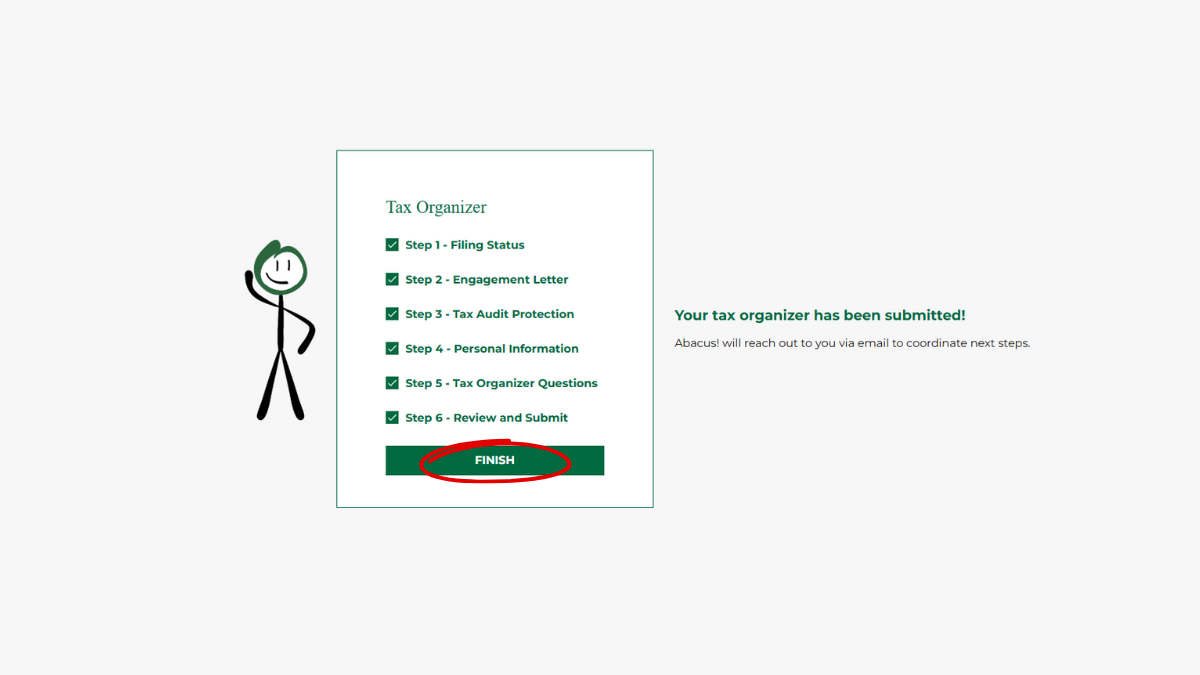
- The Tax Organizer has been successfully submitted. Click “Submit” to complete the process.